The interface in detail
Every element of the app shell explained: account switcher, profile menu, ticker, quick panel, and what each click does.
This article goes through the app shell element by element. If you prefer a guided overview, start with Welcome to Axel Tracker.
Account switcher (top of the sidebar)
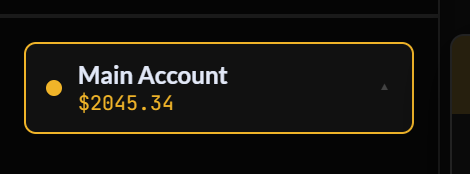
The switcher open: each account with its feed dot, ✎ to edit, + to create.
- Click the account block — opens the account menu: every account you created, each with its feed dot (green = Auto-Sync, yellow = CSV, red = manual). Click one to switch; the whole app (data, theme, background, chart preferences) follows.
- ✎ next to an account — edit its name, type, deposit, currency, timezone — or delete it.
- + New account — create another journal account (prop-firm challenge, demo, second broker account…).
- The number under the account name is that account’s current balance (deposit + realized P&L).
Navigation
Seven entries: Dashboard, Trades, Calendar, Advanced Stats, Backtesting, Notes, Psycho. The Auto-Sync page has no sidebar entry on purpose — you reach it from Trades → Auto-Sync, because connecting a broker belongs to the context of your trades.
Profile menu (bottom of the sidebar)
The profile menu: Settings, Language, Help Center, Log out.
Click your profile line to open the menu:
- Settings — opens the Settings panel (profile, security, subscription, accounts, customization, history, release notes, feedback). See the Settings panel.
- Language — English, Français, Español. The whole app switches instantly.
- Help Center — brings you here.
- Log out — ends your session.
When a new version ships, a “New” pill appears above the profile block. Click it to read the release notes; the ✕ dismisses it.
The bottom ticker
The scrolling strip at the bottom has two modes, switchable from the ⊹ panel:
- Trading stats — your live numbers (balance, P&L, win rate…) scrolling continuously.
- Vision Board — your own images (goals, dream setup, family — whatever keeps you honest) scrolling instead. Import images from Settings → Customization.
You can also hide the strip entirely, and adjust the scroll speed with the slider. See Ticker & Vision Board.
The ⊹ quick panel (bottom-right)
One click opens the live customization panel: accent palette, widget style, dashboard layout edit mode, dark/light theme, fullscreen, Vision Board controls, dashboard font, and your saved styles. Everything applies instantly. Full tour: Quick customization panel.
Session clock & floating shortcuts
- Session clock — an optional on-screen widget showing which market sessions (Asia, London, New York) are open right now, with your local timezone. Toggle it in Settings → Customization.
- Floating shortcuts — small draggable pills pinned to the right edge that open your favorite external links (broker, prop-firm dashboard, news site). Add them in Settings → Customization; press Alt + the shortcut key to open one from the keyboard.
Fullscreen & themes
Fullscreen lives in the ⊹ panel (Display section). The dark/light theme toggle is there too — and an auto theme option in Settings can follow the time of day.