The quick customization panel (⊹)
Everything in the bottom-right panel: what each control does.
The ⊹ button (bottom-right) opens the live customization panel. Every change applies instantly and is saved per account.
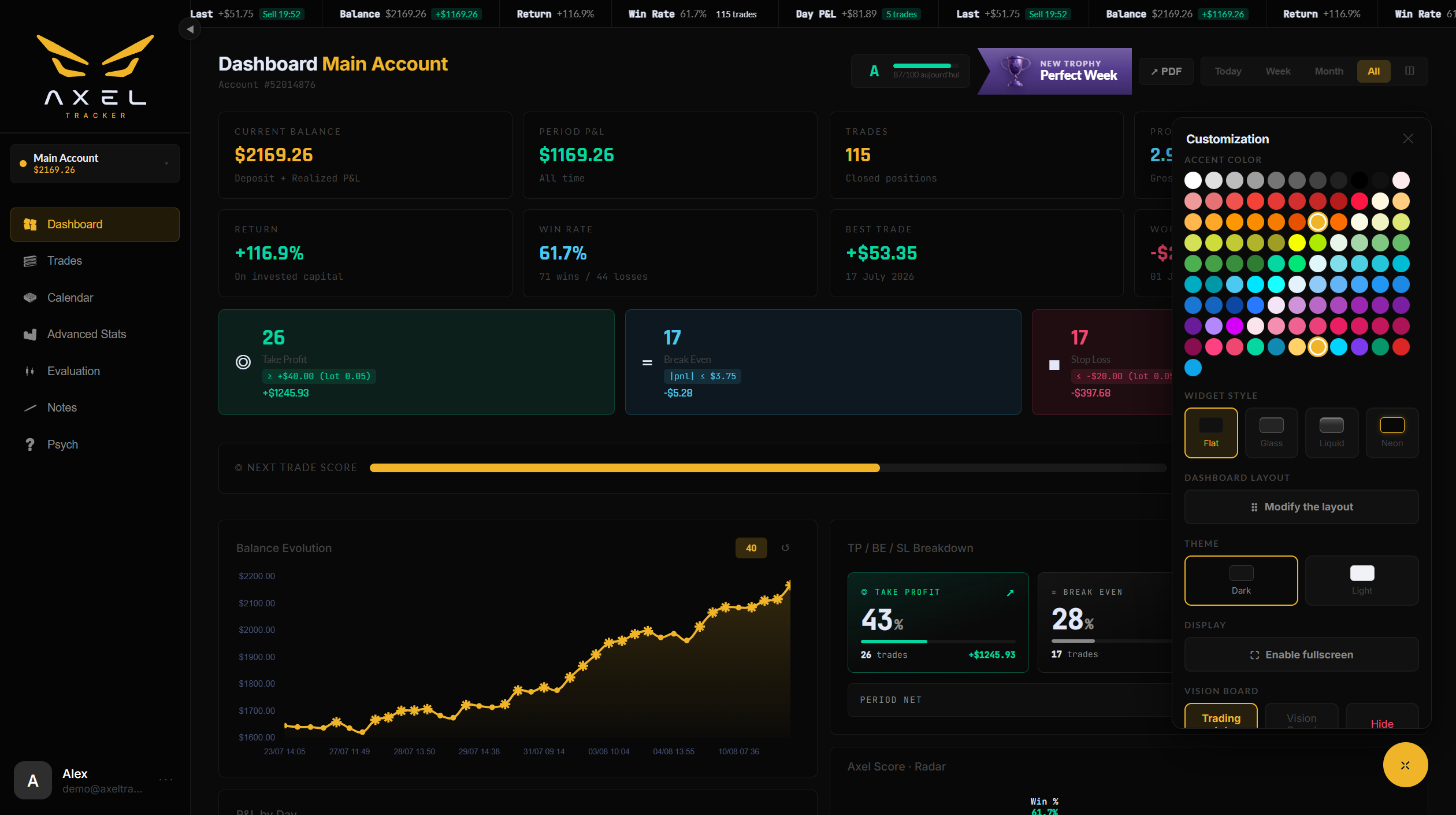
The controls, top to bottom
- Accent color — a palette of accent swatches. The accent drives buttons, active states, charts and the logo’s eyes.
- Widget style — Flat, Glass, Liquid or Neon. See Widget styles.
- Dashboard layout — toggles the drag-and-drop edit mode.
- Theme — Dark or Light.
- Display — enter / exit fullscreen.
- Vision Board — the bottom ticker’s mode (Trading stats / Vision Board / Hidden) and its speed slider.
- Dashboard font — nine typefaces for the Dashboard numbers and text.
- My styles — save the current look under a name and re-apply it in one click. See Saved styles.
The panel’s last line links to Settings → Customization, where the deeper options live (backgrounds, ticker fine-tuning, session clock, shortcuts).
Still stuck? Contact support — or send feedback from the app: profile menu → Settings → Feedback.