Importing a CSV from MetaTrader 5
The accepted format, multi-file imports, duplicate handling, and the preview step.
The accepted format
Axel imports the Closed Trades Report exported from MetaTrader 5 — the standard MT5 history export with its original header row. That header is how Axel recognizes the file.
A file with a different structure (another platform’s export, a hand-made spreadsheet, or a CSV previously exported from Axel) will not match the MT5 header and its rows will not import. If your preview shows nothing to import, the format is almost always the reason. Re-export from MT5, or see CSV import issues.
How to import
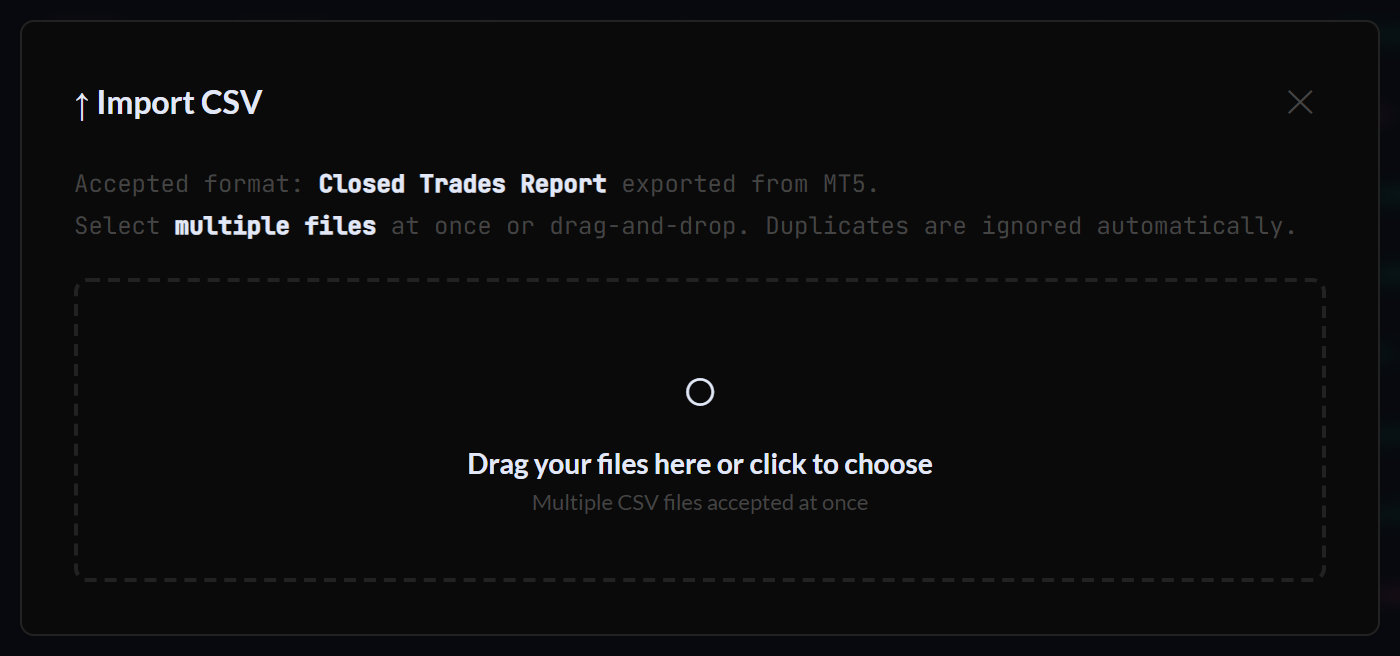
The importer: drop one or several MT5 reports at once.
- Go to Trades → ↑ Import CSV.
- Drag your file(s) into the drop zone — or click it to browse. You can select several files at once.
- Review the preview table: each row shows its status, order number, date, type, instrument, lot, P/L and note. Duplicates (trades already in your journal) are flagged and will be skipped.
- Click ✓ Import. Need more files? Add files appends them to the same preview.
Duplicates are handled for you
Every imported trade carries its MT5 order number. If you re-import an overlapping report, existing trades are recognized and skipped — importing twice never doubles your history.
After the import
- The account’s feed dot turns yellow (CSV-fed).
- All stats, calendars and achievements recalculate immediately.
- The import is logged in your action history, where it can be undone as a block.
Still stuck? Contact support — or send feedback from the app: profile menu → Settings → Feedback.