The Trades page
Search, filter, sort and manage every trade in one place.
The Trades page holds your complete history of closed positions, in three tabs: List, Deposits & Withdrawals and Timeline.
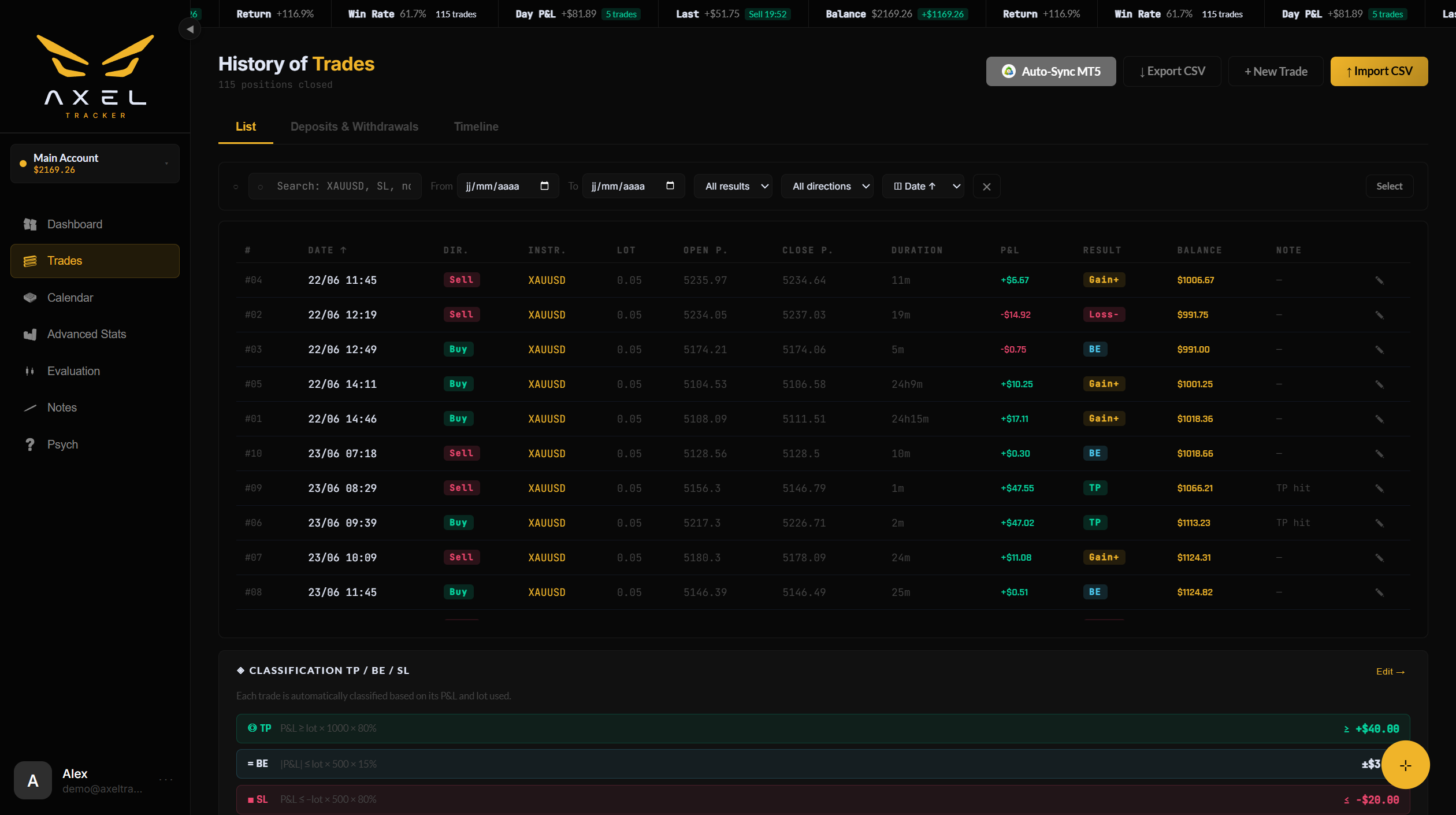
The filter bar

Search, dates, outcome, direction, sort — and the Select button for bulk actions.
- Search — free text across instrument, notes and outcome (e.g.
XAUUSD,SL, or a word from your note). - From / To — date range.
- Outcome — TP, BE, SL, Gain+ or Loss−.
- Direction — Buy or Sell.
- Sort — by date or by P&L, ascending or descending. The Date and P&L column headers are clickable too.
- ✕ — clears every filter.
The columns
#, Date, Direction, Instrument, Lot, Open price, Close price, Duration, P&L, Outcome, Balance (running balance after that trade), Note, and the row actions. The # is a permanent sequence number given at import — it never changes, even after sorting or deleting.
Header buttons
- Auto-Sync — opens the Auto-Sync hub.
- ↓ Export CSV — downloads the current (filtered) list. See Exporting.
- + New Trade — manual entry form.
- ↑ Import CSV — the MT5 report importer.
The classification bubble
Below the table, the TP / BE / SL classification bubble summarizes how your trades split by outcome, with a shortcut to adjust the thresholds. Details in TP / BE / SL classification.
Still stuck? Contact support — or send feedback from the app: profile menu → Settings → Feedback.