Mind map — your thinking space
An endless canvas for lessons, mind maps and visuals: place blocks, move them, connect them.
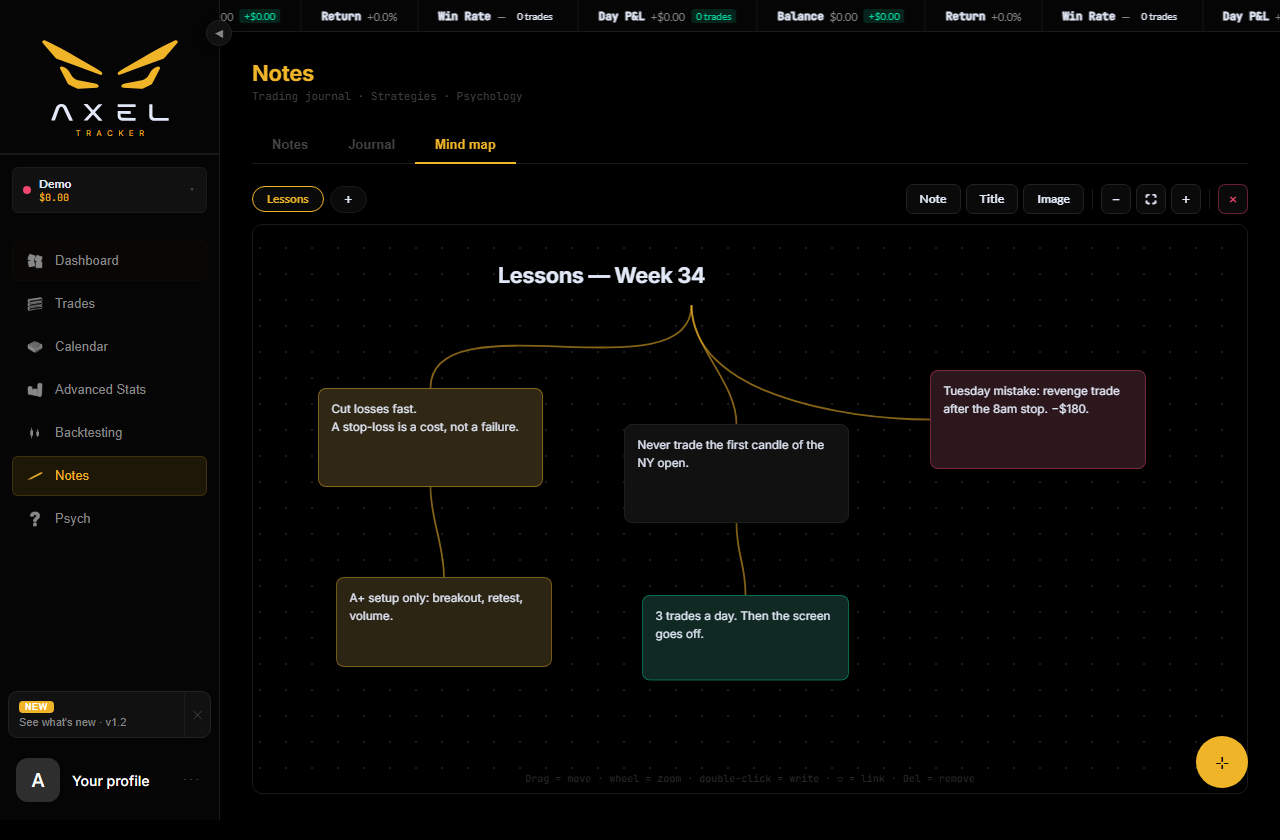
Some lessons do not fit in a list. Notes → Mind map opens an endless canvas where you lay your thinking out the way you actually think it — scattered, connected, and yours. The same surface serves as a mind map, a notebook page or a wall of screenshots.
Boards
Each board is one canvas. The pills on the left switch between them, + creates a new one, and a double-click on the active pill renames it. You can keep up to 10 boards per account — one per strategy, per month, or per lesson you keep relearning. At ten, the + button disappears; delete a board to make room.
Adding blocks
Three tools sit at the top right:
| Tool | What it drops |
|---|---|
| Note | A coloured card for a lesson, a rule, an observation. |
| Title | Large text, to head a section of the board. |
| Image | A screenshot from your machine. |
Double-click a note or a title to write in it. New blocks land in the middle of your current view, so what you add is always where you are looking.
Writing, and getting out
Three ways to leave a block once you are done — all three keep what you typed:
| Key | What it does |
|---|---|
| Enter | Saves and leaves writing mode. |
| Shift + Enter | Starts a new line inside the block. |
| Esc | Saves and leaves, same as Enter. |
Clicking anywhere outside the block saves it too. Nothing you type is ever discarded — Esc included, which keeps your text rather than throwing it away.
Moving, resizing, colouring
- Drag a block to move it. Drag the ⤡ handle at its bottom-right corner to resize it.
- A title has no resize handle: it takes exactly the width of its words, and follows them as you type. That is also where its connections attach — to the text itself, never to an empty margin.
- Select a note and a row of colour swatches appears in the toolbar — six tints, all following your accent and theme.
- The × handle at the top-left deletes a block. Deleted by mistake? The action is recorded in Settings → History and can be undone from there — the block comes back with its connections.
Looking at an image up close
An image block holds a chart at the size you gave it on the board — often too small to read. Double-click it and it opens filling the screen; click anywhere to come back. Handy for a setup you want to inspect candle by candle without leaving the board.
Connecting blocks
Select a block: a small round handle appears, detached on its right. Drag it onto another block to draw a connection. The curve anchors itself to the edge facing the other block and follows both of them as you move things around, so a rule and the mistake that taught it stay visibly tied together. Click a curve to select it, then press Delete to remove it.
Getting around
- Drag the background to pan the canvas.
- Mouse wheel to zoom where your cursor is. On a touch screen, pinch with two fingers.
- − and + zoom step by step; ⛶ frames everything on the board at once — the fastest way back when you are lost.
- Esc deselects, Delete removes what is selected — neither does anything while you are writing in a block.
Your position and zoom on each board are remembered: you come back exactly where you left off.
What is saved, and where
Boards, blocks and connections are saved with your account and follow you when you sign in elsewhere. Images are the exception: they stay on the device that imported them, for size reasons — on another computer, an image block shows « Image missing on this device » while everything else is intact.